How to publish an app on Google Play, step by step
From a Google Play Console developer account to your app live in the store: the steps, the US$25 fee, closed testing and production access, in order.
What the Google Play feature graphic is, its size (1024 × 500 px) and format, where Google shows it, what to leave out, and three examples you can copy.
Watch and listen10 min · read by an AI voice
The feature graphic is the wide banner image of your app's Google Play store listing. It is 1024 × 500 pixels, it must be a JPEG or a 24-bit PNG with no alpha channel, and Google will not let you publish the listing without one. This guide covers the size and format, where Google shows it, what Google asks you to leave out, and three examples.
Everything about the rules here comes from Google's own page, Add preview assets to showcase your app, read on November 26, 2026. Google changes these from time to time, so check that page before you upload.
A feature graphic is one of the "preview assets" of a store listing, next to the app icon, the screenshots, the short description and the optional preview video. Google calls it a way to show what using your app or game is like, and to attract new users.
It is not the app icon and it is not a screenshot. Think of it as the poster for your app: one wide picture that says what the app is, at a glance.
Google's page says plainly that you must provide a feature graphic to publish your store listing. That is true for apps and for games.
| Requirement | What Google asks for |
|---|---|
| Size | 1024 px wide by 500 px tall, exactly |
| Format | JPEG, or 24-bit PNG |
| Transparency | None. A PNG must have no alpha channel |
| Required | Yes, to publish the store listing |
| Alt text | Recommended, 140 characters or less |
Two of these catch people out.
The size is exact. An image of 1200 × 600 has almost the right shape, but it is not the right size. Export at 1024 × 500.
"24-bit PNG" means no transparency. Many design tools save PNG files with an alpha channel, which is the part of the file that holds transparency, even when nothing in the picture is see-through. If your file is refused, save it as a JPEG, or export the PNG without transparency.
Google lists these places:
Google also notes that once you add preview assets to your store listing, they are shown on that listing across all test tracks. So the graphic you upload for a closed test is the one your testers see.
Because the graphic appears in different places and sizes, parts of it can be cut off. That is the reason for the first rule below.
Google marks these as "highly recommended". Breaking them does not block your listing, but Google says it can change how your assets appear or limit where your app is promoted.
Do:
Leave out:
These three were made with our feature graphic maker. The apps are made up; the layouts are the point.
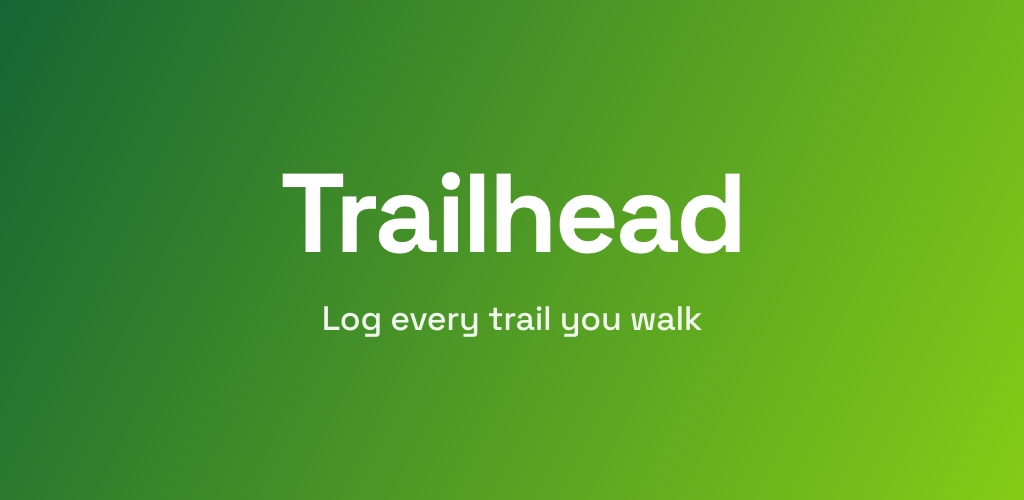
Example 1: centered on color. The simplest layout that follows every guideline. The name is large, one line says what the app does, and everything sits in the middle where nothing can cut it off.
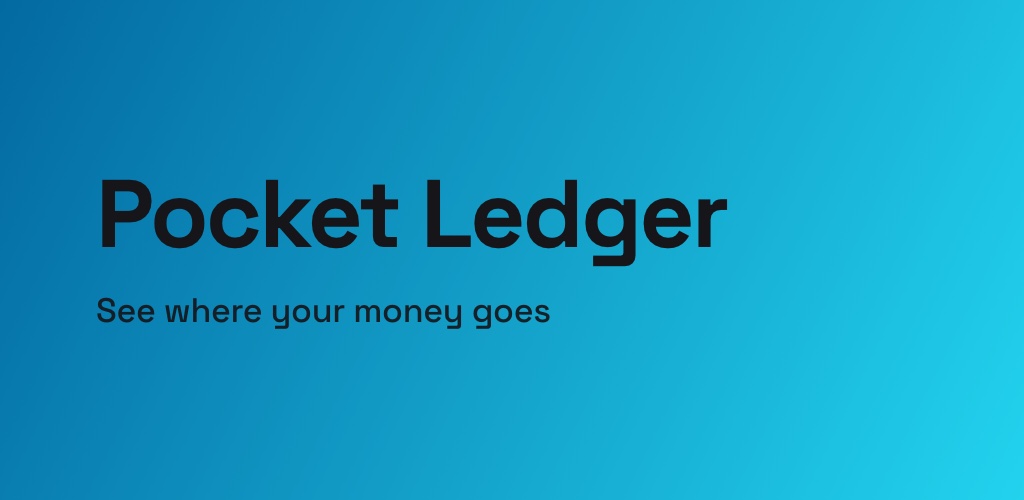
Example 2: text on the left. This leaves the right half free for a picture of your own, such as an illustration from the app. Keep the text well inside the left edge.

Example 3: a picture behind the name. A photo or illustration fills the frame, and it is darkened so the white text stays easy to read. If you use a picture, check that you have the right to use it.
None of the three has a phone in it, a store badge, or a word like "Free". That is on purpose.
You do not need a designer for a first version.
If you sign in, the maker can also draw the background for you with AI from a short description of your app.
Prefer your own design tool? Set the canvas to 1024 × 500 pixels, keep the important parts in the middle, and export a JPEG, or a PNG with transparency turned off.
The feature graphic is one of several. These are the sizes on the same Google page:
| Image | Size | Format |
|---|---|---|
| App icon | 512 × 512 px, up to 1024 KB | 32-bit PNG (with alpha) |
| Feature graphic | 1024 × 500 px | JPEG or 24-bit PNG (no alpha) |
| Phone screenshots | Each side 320 to 3,840 px, up to 8 MB each | JPEG or 24-bit PNG (no alpha) |
You need at least two screenshots to publish, and a phone listing takes from two to eight. The long side of a phone screenshot can be at most 2.3 times the short side.
Google also says that to be shown in its large recommendation formats, an app needs at least four screenshots that are 16:9 or 9:16 and at least 1,080 pixels on the short side. For a portrait phone screenshot, that is 1080 × 1920 or larger.
Note the difference: the icon must be a PNG with alpha, and everything else must be without.
Yes. Google's page says you must provide a feature graphic to publish your store listing.
1024 pixels wide by 500 pixels tall. It has to be exactly that size.
No. Google asks for a JPEG or a 24-bit PNG with no alpha channel, so the image cannot have transparency. Fill the background with a color or a picture.
It can, and most do: usually the app's name and one short line. Keep the text large and toward the middle, and leave out ranking, price and promotion words such as "Best", "#1" and "Free".
Yes. Google notes that preview assets are shown on your store listing across all test tracks once you add them.
The feature graphic is one part of the store listing, and the store listing is one step of getting an app onto Google Play. The whole path, in order, is in how to publish an app on Google Play.
If your developer account is a new personal account, one of those steps is a closed test with 12 testers for 14 days. A good listing does not replace that test, and nothing in this post changes how Google decides.
From a Google Play Console developer account to your app live in the store: the steps, the US$25 fee, closed testing and production access, in order.
You ran the 14-day closed test, applied, and Google asked for more testing. The two reasons Google names, and how to run a second test that answers them.
Google Play Console asks new personal accounts for a closed test with 12 testers for 14 days. Who it applies to, how days are counted, and what comes next.